Installation
Note
This project is under active development.
This tutorial goes over the installation process for the microvascular-anastamosis.
Getting Started
Create a new workspace
mkdir -p <workspace_dir>/src
Rename <workspace_dir> with the name of your choosing.
Enter into the workspace.
cd <workspace_dir>/src
Setting up the repo
Clone the git repo.
git clone https://github.com/jdcast/microvascular-anastamosis.git
Add the required repos and install dependencies.
vcs import --recursive < microvascular-anastamosis/galactic.repos

cd ..

rosdep -v install --from-paths src/microvascular-anastamosis/ -y --ignore-src --skip-key="orocos_toolchain orocos_kdl rtt_ros2_services rtt_ros2_sensor_msgs rtt_ros2_std_msgs rtt_ros2_geometry_msgs rtt_ros2_topics rtt_ros2_params rtt_ros2_node rtt_ros2 kdl_typekit reflexxestype2 robot_joint_publisher_gui ign_ros2_control ign_ros2_control_demos"
Build orocos_toolchian
colcon build --packages-select orocos_toolchain

source install/setup.bash
Install other dependencies
sudo apt install ros-galactic-moveit-common && sudo apt install ros-galactic-moveit && sudo apt install ros-galactic-moveit-servo && sudo apt-get install ros-galactic-ros2-control && sudo apt-get install ros-galactic-ign-ros2-control && sudo apt-get install ros-galactic-test-msgs && sudo apt-get install ros-galactic-ros-ign && sudo apt-get install ros-galactic-joint-state-publisher-gui
Build everything else
export IGNITION_VERSION=fortress

colcon build --executor sequential

source install/setup.bash
Make sure COLCON_PREFIX_PATH isn’t mangled by another ROS2 workspace
export COLCON_PREFIX_PATH=<path_to_workspace_dir>/install
Alias to set environment variable
There are quite a few RTT packages and there is a high chance of running into limitations, setting the below alias in the .bashrc file will help.
alias rsp_rtt='export RTT_COMPONENT_PATH=$COLCON_PREFIX_PATH/kdl_typekit/lib/orocos:$COLCON_PREFIX_PATH/orocos_toolchain/lib/orocos:$COLCON_PREFIX_PATH/rtt_ros2_builtin_interfaces/lib/orocos:$COLCON_PREFIX_PATH/rtt_ros2_geometry_msgs/lib/orocos:$COLCON_PREFIX_PATH/rtt_ros2_interfaces/lib/orocos:$COLCON_PREFIX_PATH/rtt_ros2/lib/orocos:$COLCON_PREFIX_PATH/rtt_ros2_node/lib/orocos:$COLCON_PREFIX_PATH/rtt_ros2_params/lib/orocos:$COLCON_PREFIX_PATH/rtt_ros2_primitives_typekit/lib/orocos:$COLCON_PREFIX_PATH/rtt_ros2_rclcpp_typekit/lib/orocos:$COLCON_PREFIX_PATH/rtt_ros2_std_msgs/lib/orocos:$COLCON_PREFIX_PATH/rtt_ros2_topics/lib/orocos:$COLCON_PREFIX_PATH/rsp_week07/lib/orocos:$COLCON_PREFIX_PATH/rtt_ur_trajectory/lib/orocos:$COLCON_PREFIX_PATH/rtt_ros2_sensor_msgs/lib/orocos:$COLCON_PREFIX_PATH/rtt_ros2_services/lib/orocos'
Then run:
rsp_rtt
Launch the robot simulation
ros2 launch robot robot.launch.xml
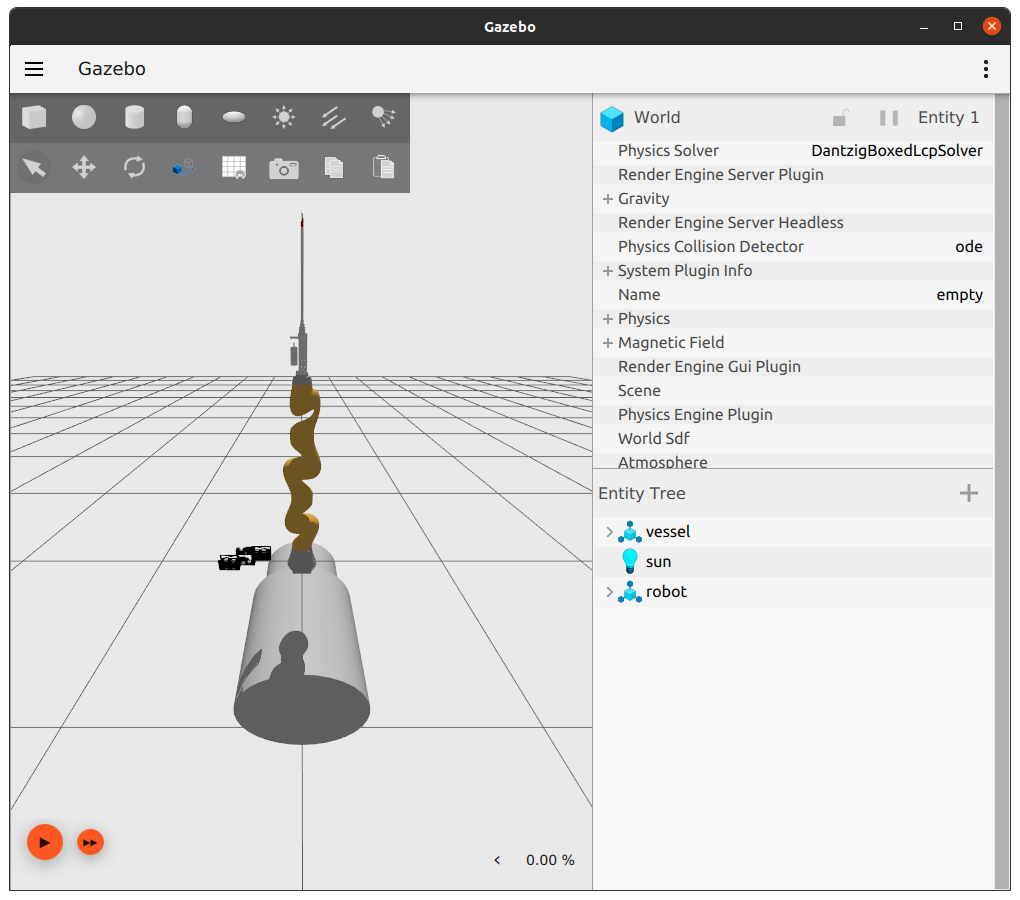
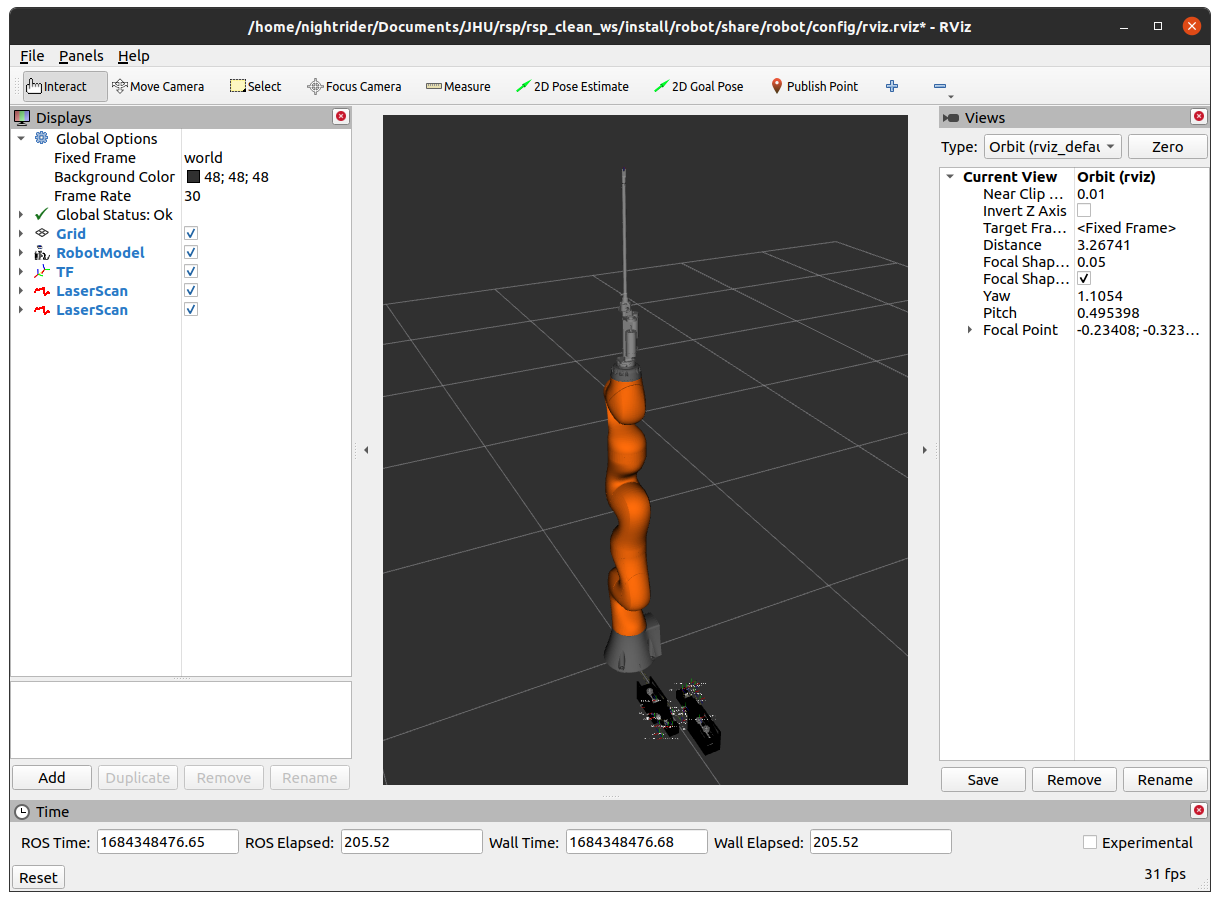
You should see the robot in both an rivz and gazebo window. See the images below for an example.
gazebo |
rviz |
|---|---|
|
|
To see more details about a specific package, click on the links under Packages on the side!